How To 6 - Configure Policy Rules
This chapter explains how to activate and configure the Policy Rules Engine for your Dataspace. Policy rules evaluate compliance conditions against your products automatically and record violations when thresholds are exceeded.
All rules are disabled by default. You must explicitly enable the rules that are relevant to your compliance program and, optionally, adjust their parameters and thresholds.
See also
Refer to Policy Rules Engine for a complete description of all available rules, configuration options, and violation lifecycle.
1. Access the Policy Rules Configuration
From the DejaCode Administration dashboard, navigate to Dataspaces.
Open your Dataspace by clicking on its name.
Scroll down to the Policy Rules Configuration section.
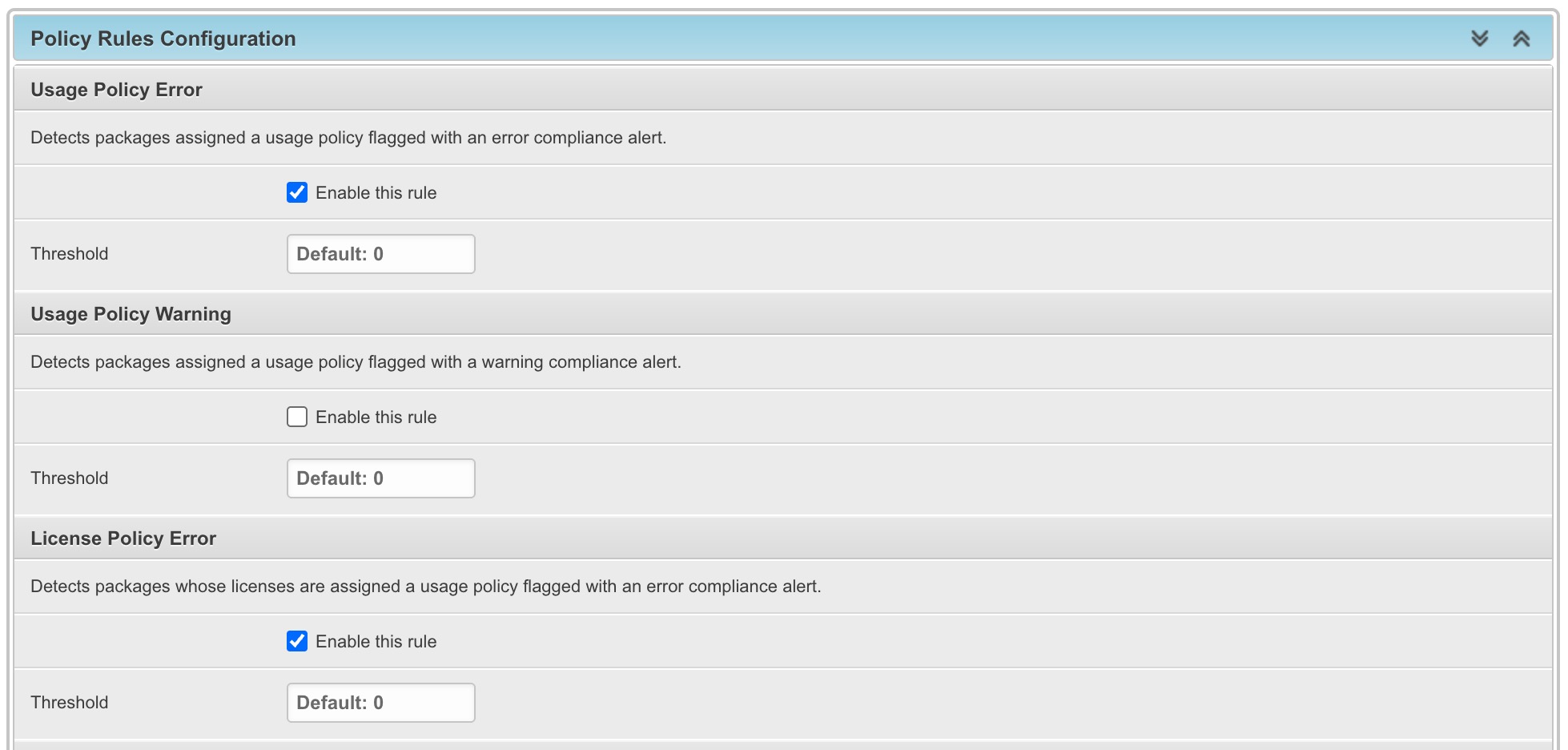
Each built-in rule is listed with its label, description, threshold, and optional parameters.
2. Enable a Rule
To activate a rule check the Enable this rule checkbox.
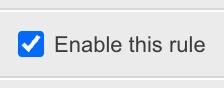
Click Save at the bottom of the Dataspace form. DejaCode will immediately schedule a background re-evaluation of all products in the Dataspace.
To disable a rule, uncheck the Enable this rule checkbox and save. Any currently open violations for that rule are automatically resolved.
Note
Rules that are not enabled are skipped during evaluation and any previously open violations for those rules are automatically resolved.
3. Set a Threshold
By default, a single violation is enough to trigger a rule. The Threshold field lets you tolerate a certain number of violations before a triggered state is recorded. Violations are only recorded when the count strictly exceeds the threshold.
For example, setting a threshold of 2 on the License Coverage Gap rule means the rule is only triggered when more than 2 packages have no license expression.
This is useful when a small number of violations is acceptable during remediation phases.
4. Configure Rule Parameters
Only vulnerability-based rules expose additional parameter fields to narrow their scope.
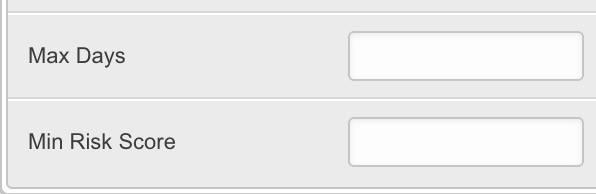
For the Vulnerability Detected rule, you can set a Min Risk Score to restrict detection to vulnerabilities above a minimum risk score. Leave the field blank to flag any vulnerability regardless of score.
For the Vulnerability Stale rule, two parameters are available:
Max Days: the maximum number of days a high-risk vulnerability may remain unaddressed before the package is flagged. Defaults to 30.
Min Risk Score: only vulnerabilities at or above this score are considered. Defaults to 8.0.
5. Investigate Violations
Once rules are active and violations have been detected, DejaCode provides two levels of visibility.
Compliance Dashboard
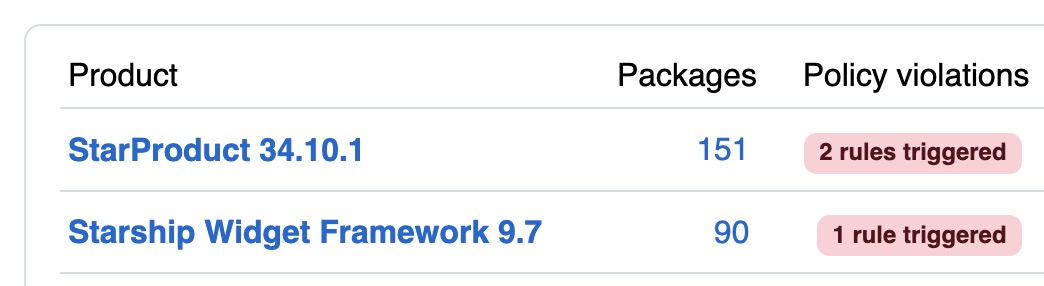
The Compliance Dashboard is a dedicated page (accessible from the main menu) providing an overview of all products with their compliance metrics, including a Policy violations column showing the number of active violations per product. Use this view to identify at a glance which products have triggered rules and prioritize which ones to address first.
Compliance tab drill-down
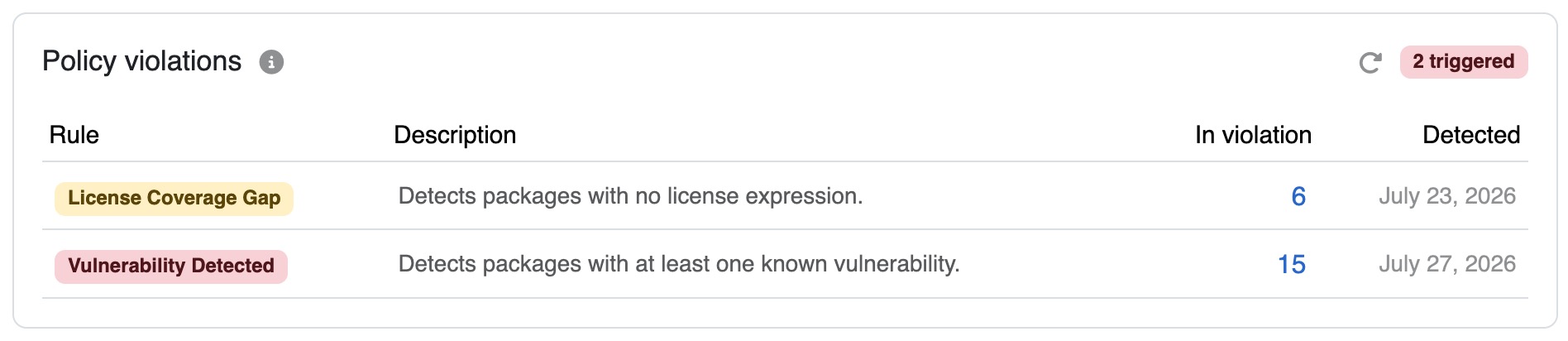
From the Compliance Dashboard, click the policy violations count on a product row to open its Compliance tab directly. The Policy violations panel lists each triggered rule with its violation count and detection date.
Tip
To see the status of all active rules, including those that are not triggered, click the info icon next to the panel title. A modal opens showing every enabled rule with its current status: Triggered or OK.
To drill into the affected packages for a specific rule:
In the Policy violations panel, locate the rule you want to investigate.
Click the violation count in the In violation column.
The product inventory opens pre-filtered to show only the packages that triggered that rule. You can use the inventory’s standard filters and sorting to prioritize remediation.
6. Set Up Notifications
DejaCode can notify external systems automatically when policy violations are detected or resolved, without requiring manual checks of the compliance tab.
Two webhook events are available:
policy.violation_detected: fired when one or more new violations are detected during a rule evaluation run.policy.violation_resolved: fired when violations are resolved.
To receive these notifications, configure a webhook in the Admin interface pointing to your target endpoint (Slack, ticketing system, CI/CD pipeline, or any HTTP receiver).
See also
Webhook integration for instructions on creating and configuring webhooks.